10 screenshot problems you never imagined had a fix - and the one extension that solves them all
Dropdown that vanish, customer data on screen, thirty pages to capture, a bug with no context. One free extension handles all of it.
Taking a screenshot is easy. Everything around it is the hard part.
The menu closes before you can capture it. Nobody remembers which page the image came from. There is a customer’s email in the corner. The developer replies “which browser?” You need the same shot of thirty pages.
You have lived with these for so long that they stopped looking like problems. They are just “how screenshots work”.
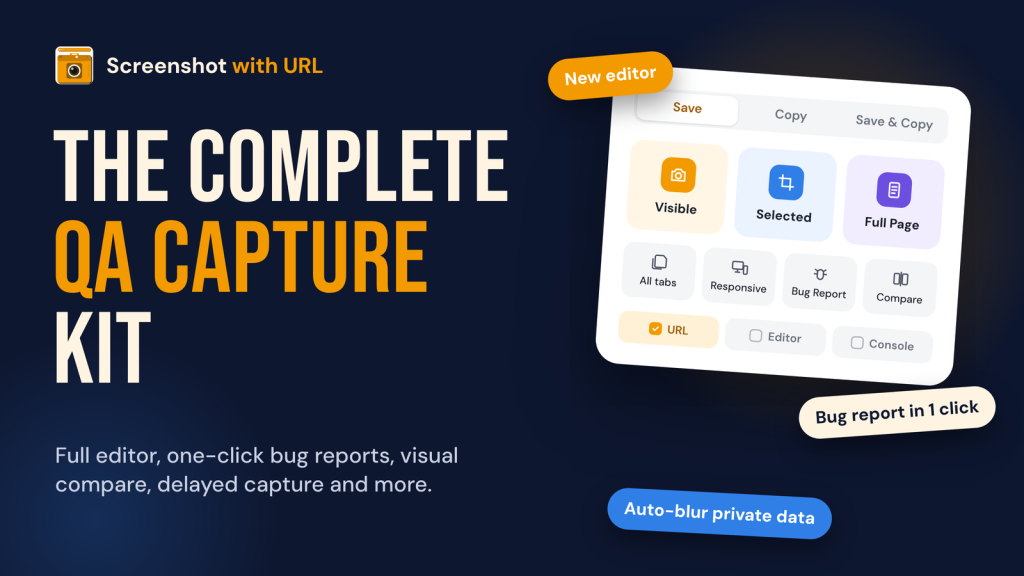
They are not. Screenshot with URL is now a complete screenshot solution: capture, mark up, protect, compare, report and export, without leaving the browser. Here are ten problems it solves, including a few you probably never thought a screenshot tool could.
1. Which page was this from?
A week later, a screenshot is just a picture. No one knows the page, the environment or the build.
The fix: every capture carries its URL, stamped on the image. Visible screen, selected area or full page. In a PDF the URL stays clickable, so one click takes the reader back to the exact page.
2. The menu closes the moment I click the extension
Hover menus, dropdowns and tooltips disappear as soon as you move the mouse away. Most people give up or reach for a phone camera.
The fix: delayed capture. Set 3, 5 or 10 seconds, click capture, open your menu and wait. A see-through countdown sits in the middle of the page, ignores your mouse, and is removed before the shot, so it never appears in the screenshot.
3. I need thirty pages, not one
Regression runs, client audits and release sign-offs mean opening page after page and repeating the same clicks.
The fix: capture in bulk.
- All open tabs — one click captures every tab in the window.
- A list of URLs — paste the addresses, one per line. Each page opens in a temporary tab, is captured, and the tab closes by itself.
Get the result as one PDF, separate images or one long image. Every page keeps its own URL.
4. Which browser? Any console errors?
A screenshot without context turns into a comment thread, and the bug waits while people ask questions.
The fix: one-click bug report. The extension captures the page and collects the answers for you:
- URL, browser and version, operating system
- Viewport, screen size, zoom and language
- Console errors, including uncaught exceptions
- Failed network requests with their status codes
Add your steps, then copy it as Markdown, Jira wiki or plain text and paste it into the ticket.
5. Something changed, but I can’t see what
Two screenshots side by side and ten minutes of squinting. A 2-pixel shift or a missing icon is easy to miss.
The fix: visual compare. Pick a Before and an After — two tabs, staging against production, or two image files. Changed pixels are tinted, changed areas are boxed, and you get the percentage that differs. View it as highlight, side by side or a slider.
6. How does it look on a phone?
Resizing the window, opening device tools, capturing three times, then arranging the images by hand.
The fix: responsive capture. One click gives you the same page at phone, tablet and desktop width, laid side by side in a single image.
7. There is customer data on the screen
An email address or a card number in a screenshot can end up in a ticket, a chat or a slide. Blurring each one by hand is slow, and one miss is enough.
The fix: auto-blur. Switch it on and emails, phone numbers and card numbers are blurred in every capture, including full page and form fields. The page itself is not changed. It all happens in your browser, and nothing is uploaded.
8. I have to prove everything I tested
Test evidence usually means pasting screenshots into a document one by one at the end of the day.
The fix: evidence mode. Every capture you save or copy is added to a running list. When the session ends, one click turns the list into a single PDF, each page with its URL.
9. I still need another app to mark it up
Capture in one tool, annotate in a second, export in a third.
The fix: a full editor, built in.
- Everything stays movable. Shapes, arrows, text and pen strokes can be selected, dragged, resized and recoloured after you draw them.
- Curved arrows, callouts and numbered steps. Point around things, add a note, or turn a screenshot into a how-to.
- Spotlight and magnifier. Dim everything except the important area, or zoom in on small text.
- Highlight, blur and erase. Show what matters, cover what should not be shared.
- Stickers. Pass, fail, cursor and emoji stamps, plus your own images.
- Image tools. Rotate, resize, expand the canvas, add a shadow, a frame or a torn edge.
Save as PNG, JPG, WEBP or PDF, or combine several images into one PDF or one image.
10. Tools that do this much are a mess to use
More features usually means a busier screen and a longer search for the one button you need.
The fix: a calm, light design. Only the three main capture buttons carry colour, so your eye lands there first. Everything else stays quiet until you need it. Light and dark themes, in seven languages.
One extension, the whole job
None of these needs a second tool, an account or a desktop app. Screenshot with URL is a free extension for Chrome, Edge and Brave, from the team behind SelectorsHub.
Install or update it here: https://chromewebstore.google.com/detail/screenshot-with-url-full/ekobnhinclimmneheimhlokgmafjndog
Learn more about it here: https://selectorshub.com/screenshot-with-url/
Most of these fixes started as a complaint from a user. If you have a screenshot problem that is not on this list, tell us — that is how the next one gets solved.
Recent Post