What's New in TestCase Studio Pro: Smarter Integrations, Auto-Filled Results and a Better Workspace
Recording a test case in TestCase Studio Pro takes seconds. What comes after it used to take much longer: writing expected results, filing the ticket, attaching screenshots, sharing it with the team.
This round of updates goes after that second half. Results now fill themselves, test cases go straight to qTest, Slack, Jira, TestRail or Azure DevOps, and the workspace bends to the way you read your steps. Here is everything that is new.
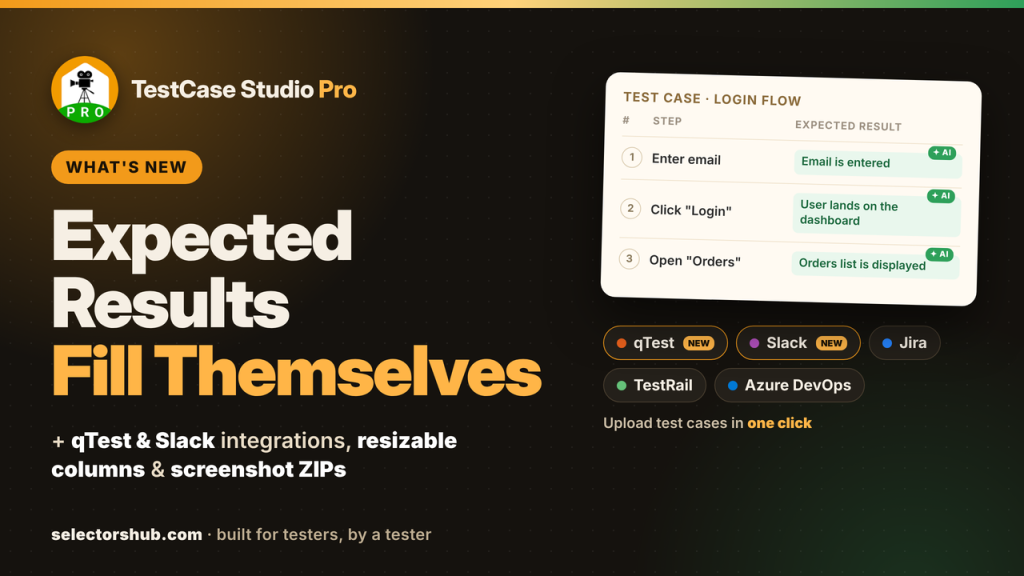
Expected and Actual Results now fill themselves
Every step you record now gets an Expected Result automatically. Click a Login button and the column reads something like “User is logged in and the dashboard is displayed”, with no typing.
- Two engines. Chrome’s built-in AI writes natural, context-aware results right on your computer. Smart rules fill the column instantly when the AI isn’t available.
- Private by design. The AI runs on your device, so nothing about your application is sent to a server.
- Your words win. Anything you type yourself is never overwritten. The Exp Result button in the toolbar lets you turn auto-fill on or off, switch engines, or fill and regenerate results for the whole test case.
The Actual Result column completes the picture. When you replay a test case with Run, each step is marked “Step executed successfully.” or with the exact reason it failed. An info icon on the column header explains this, so nobody wonders where the text came from.
Two new integrations: qTest and Slack
TestCase Studio Pro now connects to five tools: Jira, TestRail, Azure DevOps, and two new ones.
qTest by Tricentis. Upload recorded test cases to qTest Manager with their steps, expected results and a screenshot for every step. Pick the project and module from a list, and required fields are filled in for you. Setup needs only your qTest URL and API token.
Slack. Send a test case to any channel your team uses. A summary message lands in the channel, with every step and its screenshot posted in a thread underneath, so the channel stays readable. Setup is a one-time copy-paste: TestCase Studio Pro gives you a ready-made Slack app manifest, you create the app from it, and paste the bot token back.
Jira, rebuilt for real projects
Every upload used to become a Jira Task. Now you choose.
- Pick the issue type. Bug, Task, Story or any type your project uses, loaded straight from Jira. Your choice is remembered per project.
- Cloud and Data Center. Both work, and TestCase Studio Pro detects which one you’re on automatically.
- Richer tickets. The description includes the steps with their Expected and Actual Results in a table, plus screenshots.
- Clear progress and errors. A progress bar shows the upload, Jira’s own error message is shown if something goes wrong, and buttons no longer get stuck. Your last project is remembered.
Integration settings, redesigned
With five tools to connect, the settings needed to be easier to scan. Open Customize and you’ll find one Integrations section with a card for each tool.
- Know where Upload goes. “Upload button sends to” sits at the top, and the selected tool is highlighted with a green mark.
- Copy and mask any field. Every hostname, username and token field has a copy button and an eye icon. Tokens and API keys are masked by default, which matters when you share your screen.
- Help where you need it. Each card links to a short setup video for that tool.
- Several Azure DevOps accounts. Add as many as you need and mark the default.
- Cleaner pickers. The project and channel pickers you see when uploading have a simpler look with a clearly highlighted selection, in light and dark mode.
Screenshots come with your downloads
If you share test cases as files, you no longer need two clicks. Turn on Settings → Download Settings → Screenshots ZIP with downloads, and every Excel, CSV, PDF or DOCX download also saves a ZIP of all step screenshots for the same test cases.
It’s off by default, so nothing changes until you want it. For DOCX, the ZIP starts once the document is ready, so the two downloads never get in each other’s way.
A workspace that fits how you read
The test case table has many columns, and long steps used to be cut off. Not anymore.
- Resizable columns. Drag the edge of any column header to widen it and read a step in full. The other columns shrink to make room, and if you go further, the table scrolls sideways. Your widths are remembered next time you open the studio, and a double-click on any edge resets them.
- Reorder by dragging. Column headers show a hand cursor where you can grab them, so it’s clear they can be dragged into a new order.
- Columns button. Show or hide any column in one click from the toolbar, with Show all to bring everything back, no trip to Customize needed.
- Footer buttons your way. A gear icon after Execute lets you show or hide footer buttons, and the footer now fits every button, including Execute, on smaller screens.
- Quick tooltips. Hover Exp Result, Columns or the footer gear for a one-line explanation.
- More room. The studio window opens taller (never beyond your screen), so settings need less scrolling.
Smaller fixes and polish
- Clearer error messages across all integrations.
- More reliable screenshot uploads to Jira.
- The TestRail project list is no longer overwritten by Jira.
- Unchecked checkboxes in Settings now have a visible border, in light and dark mode.
- Checkbox labels no longer shift when you untick them.
- Toolbar buttons keep their border after you click them.
- The recording indicator no longer shows up in captured page titles.
Try it today
All of this is available now in the latest TestCase Studio Pro. Chrome updates the extension automatically; to get it right away, open chrome://extensions, turn on Developer mode and click Update.
New to Pro? See the plans and start turning recordings into finished test cases, tickets and reports in one click.
Tell us which integration or feature you’d like next. Your feedback shapes every release.
Recent Post