Jira Integration in TestCase Studio Pro Just Got a Big Upgrade
Recording a test case takes seconds. Turning it into a proper Jira ticket used to take longer – and for some teams it didn’t work at all. The latest TestCase Studio Pro release fixes that.
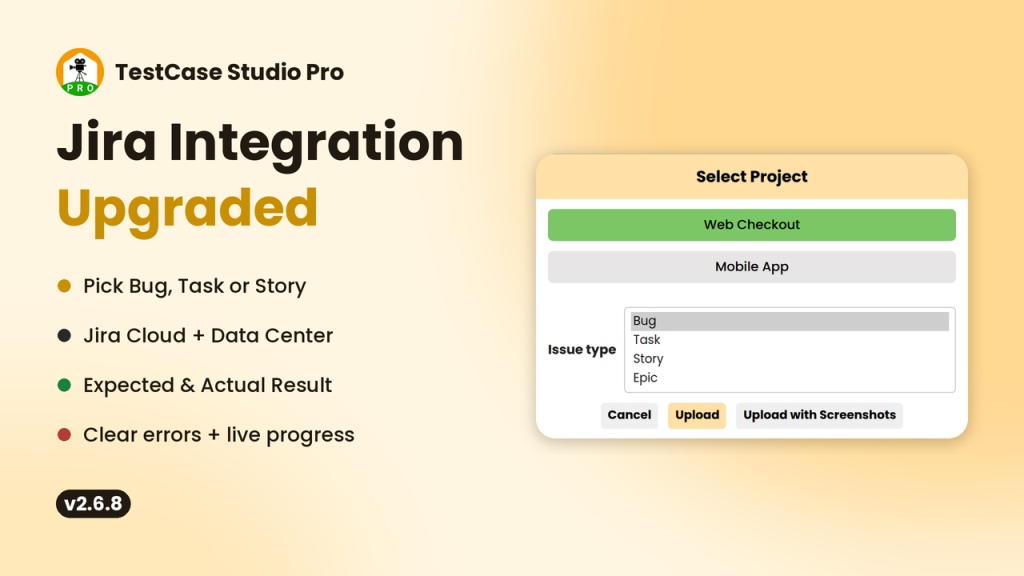
Pick your own issue type
You now choose whether each upload becomes a Bug, a Task, a Story, or any custom type your project has.
Until now, every test case went to Jira as a Task. Most QA teams file Bugs, and plenty of Jira projects have no “Task” type at all – so the upload failed with “Specify a valid issue type”.
Right after you pick a project, an Issue type dropdown lists that project’s own types. TestCase Studio Pro remembers your choice per project, so the next upload is one click.
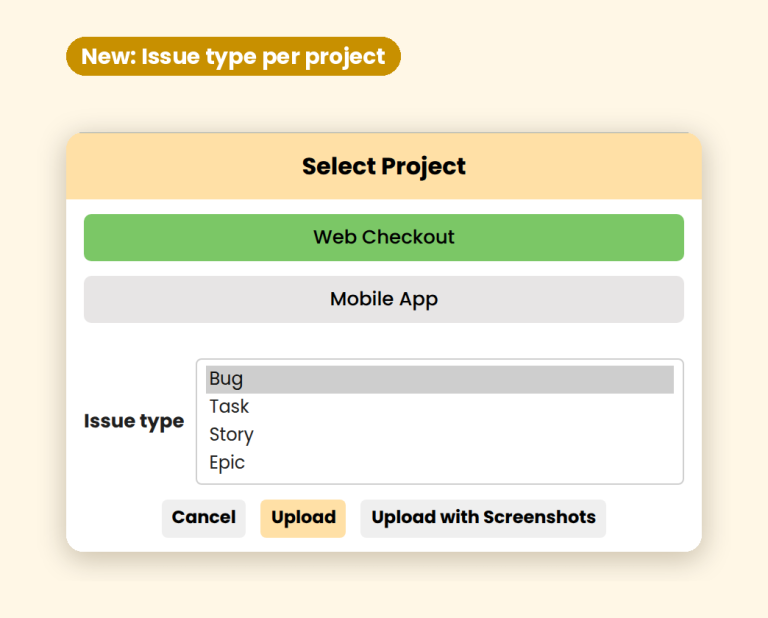
Works with Jira Cloud and Jira Data Center
The integration now connects to both Jira Cloud and self-hosted Jira Data Center, and works out which one you have on its own.
There is no “deployment type” setting to choose. TestCase Studio Pro detects it and adjusts the API version, the description format and the sign-in method for you. Company Jira on an internal address, on http://, or under a path like /jira all work.

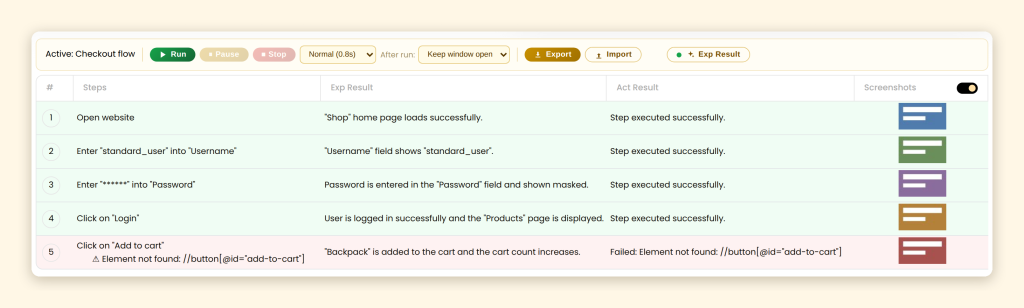
Expected and Actual Result in every issue
Every uploaded issue now carries a steps table – # | Step | Expected Result | Actual Result – so the developer sees what should have happened and what did.
Both columns fill themselves:
- Expected Result is written while you record, using Chrome’s built-in on-device AI when available, or smart rules otherwise. Nothing leaves your computer.
- Actual Result fills in when you replay the test case with Run: “Step executed successfully.” or “Failed:” plus the reason.
Text you type yourself in either column is never overwritten.
Live progress, reliable screenshots, readable errors
You can now watch the upload happen, and if Jira says no, you see exactly why.
- Live progress bar – counts test cases and screenshots as they go up.
- Screenshots that attach – uploaded one at a time, named per step (
step-3.png), with any failure reported. - Issue keys on success – e.g. “Test Cases Uploaded Successfully: WEB-101”.
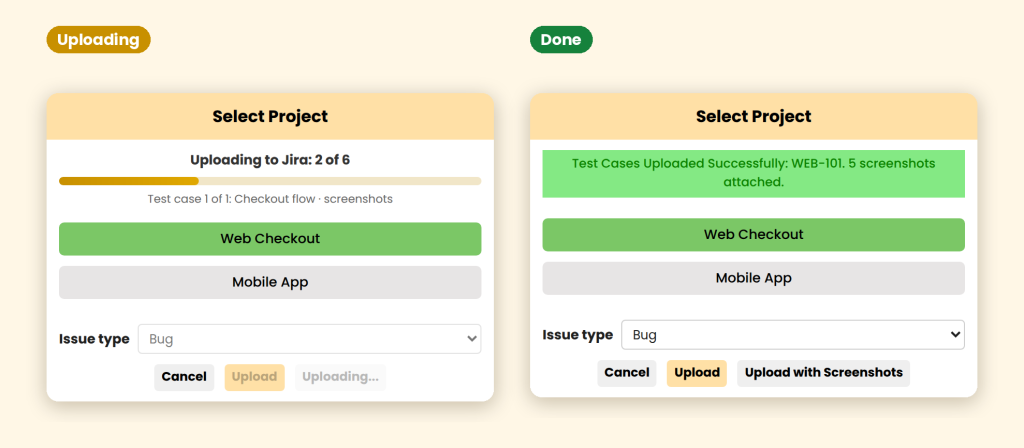
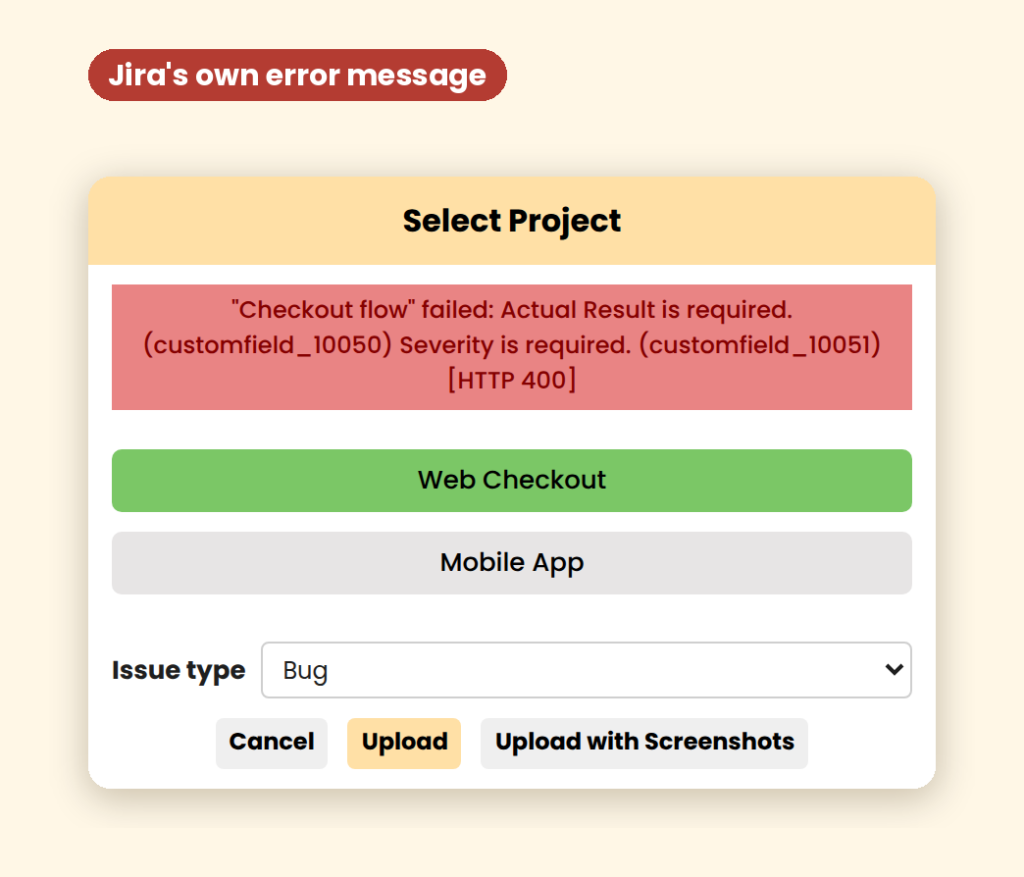
When Jira rejects an upload, you now get Jira’s own reason – for example, which mandatory field is missing – instead of “Something Went Wrong”. The Upload button never gets stuck on “Uploading…” again.
Download and Explore more about TestCase Studio Pro-
Download Link
Recent Post