Screenshot with URL

Gmail GitHub Docs
Bookmarks auto-hidden New
Full page capture Smart

One-click screenshots with URL bar, hidden bookmarks, and frozen dropdowns. Capture visible, selected, or full page — plus screen recording and a built-in editor.

📷 Visible Area ✂️ Selected Area ⏸️ Dropdown Pause 📅 Calendar Pause 🌐 Network Logs ⚙️ Console Logs 🎥 Screen Recording ✏️ Built-in Editor

⭐ No account required • Works offline • 100% Free
✨ Key Features

Everything you need to capture, record, edit, and share screenshots with context

📷

Visible Area Capture

Capture what's currently visible on your screen with one click

✂️

Selected Area Capture

Draw a rectangle to capture only the specific region you need

📜

Full Page Capture

Automatically scroll and capture entire pages with real-time progress

🪟

Dual Select Capture

Select two separate areas on the page and combine them into a single screenshot

⬛⬛

Split View Capture

Capture all open browser windows side by side in one combined screenshot

🎥

Screen Recording

Record your screen or a specific tab and save as video

🔗

URL Address Bar

Optional URL bar overlay with Chrome Dark or Minimal Light themes

✏️

Built-in Editor

Annotate with arrows, shapes, text, highlight, blur & zoom controls

📋

Save, Copy, or Both

Download to disk, copy to clipboard, or do both — your choice

🕐

Timestamp Watermark

Auto-add date and time to screenshots for documentation and audit trails

💾

Smart Naming

Auto-named files: domain_timestamp.png for easy organization

⏸️

Pause Dynamic Elements

Freeze dropdowns, tooltips, and menus so they stay visible in captures

⌨️

Keyboard Shortcuts

Ctrl+Z undo, Ctrl+S save, Ctrl+/- zoom — power user friendly

🔒

Privacy First

No data collection, no account needed — everything stays on your device

📸 Capture & Record Modes

Choose the perfect method for any situation

📷

Visible Area

Instantly capture exactly what you see on screen. Perfect for quick screenshots of the current view.

One-Click Capture
✂️

Selected Area

Click and drag to draw a selection rectangle. Capture only the specific region you need with pixel precision.

Precision Select
📜

Full Page

Automatically scrolls through the entire page and stitches all sections into one seamless image with live progress tracking.

Auto-Scroll & Stitch
✦ NEW
🪟

Dual Select

Draw two separate selection areas on the same page. Both regions are captured and merged side by side into a single screenshot — great for comparisons and bug reports.

Two Areas, One Shot
✦ NEW
⬛⬛

Split View

Captures all your open browser windows simultaneously and stitches them side by side. Supports Full Page mode per window via the Settings toggle.

Multi-Window Capture
🎥

Screen Recording

Record your entire screen, a specific application window, or a browser tab and save as a video file.

Video Capture

💾 Flexible Save Options

Choose how you want to handle your screenshots

⬇️

Save

Download the screenshot directly to your chosen folder

📋

Copy

Copy to clipboard for instant pasting into any app

📋⬇️

Copy & Save

Copy to clipboard and download — best of both worlds

🚀 How It Works

3 simple steps to better screenshots

1

Capture

Click extension icon, choose Visible, Selected, Full Page, Dual Select, Split View, or Record Screen

2

Edit

Annotate with arrows, shapes, text, highlights or blur sensitive info

3

Save

Download, copy to clipboard, or both — your workflow, your choice

🎨 Powerful Editing Tools

Professional annotation tools at your fingertips

✏️

Pen

Freehand draw

📏

Line

Straight lines

➡️

Arrow

Point & direct

Rectangle

Box highlight

Circle

Emphasize

🔤

Text

Add labels

🖍️

Highlight

Marker effect

🔲

Blur

Hide sensitive

🧹

Eraser

Remove annotations

🎨

Color

Pick any color

🔍

Zoom

Fit / In / Out

↩️

Undo

Ctrl+Z

↪️

Redo

Ctrl+Y

⌨️ Keyboard Shortcuts

Speed up your workflow with handy shortcuts in the editor

Undo Ctrl + Z
Redo Ctrl + Y
Save Ctrl + S
Zoom In Ctrl + +
Zoom Out Ctrl + -
Fit to Screen Ctrl + 0

⚙️ Flexible Settings

Customize to match your workflow

✏️

Editor Toggle

Open editor before saving or download directly — your choice

🔗

Toggle URL Bar

Include or exclude URL bar from screenshots as needed

🕐

Timestamp Watermark

Auto-stamp date and time on screenshots for documentation

⏸️

Pause Dynamic Elements

Freeze dropdowns, tooltips, and menus during capture

⬛⬛

Full Page in Split View

Capture each window at full page length when using Split View mode

📍

Ask Where to Save

Auto-save or choose location each time you capture

🔔

Auto-Close & Notify

Auto-close popup and show a page notification on save

🖼️

Format Options

Save as PNG for quality or JPEG for smaller file size

🎨

URL Bar Style

Choose Chrome Dark or Minimal Light theme for the URL overlay

📁

Save Folder

Set custom download folder within your Downloads directory

🔒 Your Privacy Matters

No data collection No account required No external servers Works offline Files stay on your device

Start Capturing Better Screenshots Today

Join thousands of users who trust Screenshot with URL for their daily workflow

Add to Chrome — It's Free
Screenshot with URL vs Snipping Tool vs Mac Screenshot vs GoFullPage
⚡ Feature Comparison

Screenshot with URL vs Built-in & Extension Tools

OS screenshot tools capture pixels. GoFullPage handles full-page scrolls. Screenshot with URL is built for documenting web content — with URL context, dynamic element freeze, timestamps, dual select, split view capture, screen recording, and a full editor.

Feature
Screenshot with URL Browser Extension
GoFullPage Browser Extension
Snipping Tool Windows Built-in
Mac Screenshot ⌘⇧4 / ⌘⇧⌃4
🔗 URL in Screenshot
Clean styled URL bar on all modes
Not available
Only in full-screen/window capture
Only in ⌘⇧3; lost with ⌘⇧4
🕐 Timestamp Watermark
Visible date & time on image
Not available
File metadata only
Filename & metadata only
📄 Full Page Capture
Auto scroll & stitch with progress
Auto scroll & stitch
Visible screen only
Visible screen only
🧹 Clean URL Output
Minimal styled URL bar, no clutter
No URL context
Includes tabs, bookmarks, taskbar
Includes Dock, menu bar, windows
⏸️ Pause Dropdowns
Freezes open select menus
Not available
Menus close before capture
📅 Pause Date Pickers
Freezes open calendar widgets
Not available
Picker closes before capture
📷 Visible Area Capture
Yes
Full page only
Yes
⌘⇧3 or ⌘⇧4+Space
✂️ Selected Area Capture
Yes
Full page only
Yes
⌘⇧4 drag to select
🪟 Dual Select Capture New
Select 2 areas, merged into one image
Not available
Not available
Not available
⬛⬛ Split View Capture New
All windows side by side in one shot
Not available
Not available
Not available
🎥 Screen Recording
Record screen, window, or tab
Not available
Built-in recording
Via ⌘⇧5 toolbar
✏️ Built-in Editor
Pen, arrow, shapes, blur, text, highlight, eraser
Pen, highlighter, shapes, text
Markup via Preview (separate)
🔲 Blur / Redact Tool
Pixelation blur
Not available
Not available
Not available
🧹 Eraser Tool New
Erase annotations selectively
Not available
Yes
Via Preview markup only
📋 Copy to Clipboard
One-click copy
Drag to desktop
Yes
⌘⇧⌃4
💾 Save Modes
Save, Copy, or Both in one click
Download PNG, JPEG, or PDF
Save & Copy separate actions
Save or Copy — separate shortcuts
🏷️ Smart File Naming
domain_timestamp.png
URL-based name
Generic "Screenshot" + date
📁 Custom Save Folder
Remembered default folder
Downloads only
Save As each time
Via ⌘⇧5 options
🌐 Browser-Aware
URL, title, lazy-load & sticky headers
Handles iframes & inner scroll
OS-level, no page awareness
📐 URL Bar Styles
Chrome Dark & Minimal Light
N/A
N/A
N/A
📑 PDF Export
Image only (PNG/JPEG)
PNG, JPEG & PDF ★ Advantage
Image only
Image only
🖥️ Non-Browser Apps
Browser only
Browser only
Any application ★ Advantage
🪟 Window-Only Capture
Browser content only
Window snip mode
⌘⇧4+Space
💰 Price
100% Free
Free core; editor is paid
Free (with Windows)
Free (with macOS)
Screenshot with URL — Offline Build Install
Offline Installation

Get the Offline Build Up & Running

Prefer a self-hosted setup or working in a restricted environment? Install Screenshot with URL directly in Chrome in just a few simple steps.

01

Download the ZIP file

Click the Download ZIP button above to grab the latest offline build of Screenshot with URL.

02

Extract the archive

Right-click the downloaded file and choose Extract All (Windows) or double-click to unzip (macOS). Remember the folder location — you'll need it in step 5.

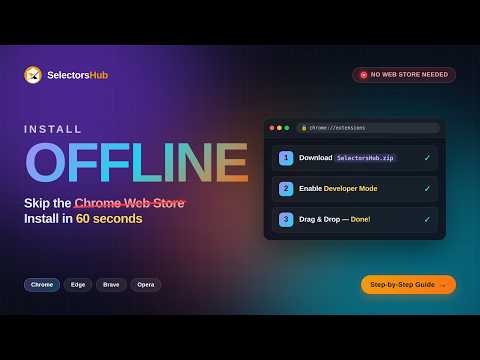
Steps 3 – 6 in action
chrome://extensions/
Screenshot with URL
Extensions
Developer mode
Screenshot with URL
Screenshot with URL
Capture screenshots with URL & timestamp.
On

Open extensions → Developer mode → Load unpacked → Pin it.
03

Open Chrome's extensions page

In Chrome, paste chrome://extensions/ into the address bar and press Enter.

04

Turn on Developer mode

Look for the Developer mode toggle in the top-right corner of the extensions page and switch it on. Three new buttons will appear.

05

Load the unpacked extension

Click Load unpacked, then select the folder you extracted in step 2. Screenshot with URL will install instantly and appear in your extensions list.

06

Pin it and start capturing

Click the puzzle-piece icon in Chrome's toolbar and pin Screenshot with URL for one-click access. Open any webpage and click the icon to capture the visible area, a selection, or a full page — with the URL bar baked right in.

Heads up: Keep the extracted folder where it is. Deleting or moving it will break the extension. To update later, simply replace the folder contents with a fresh download and click the refresh icon on the extensions page.