To record the screen (video), please follow these simple steps-
- Click on Record Screen button present at the bottom right corner in TestCase Studio Pro window.
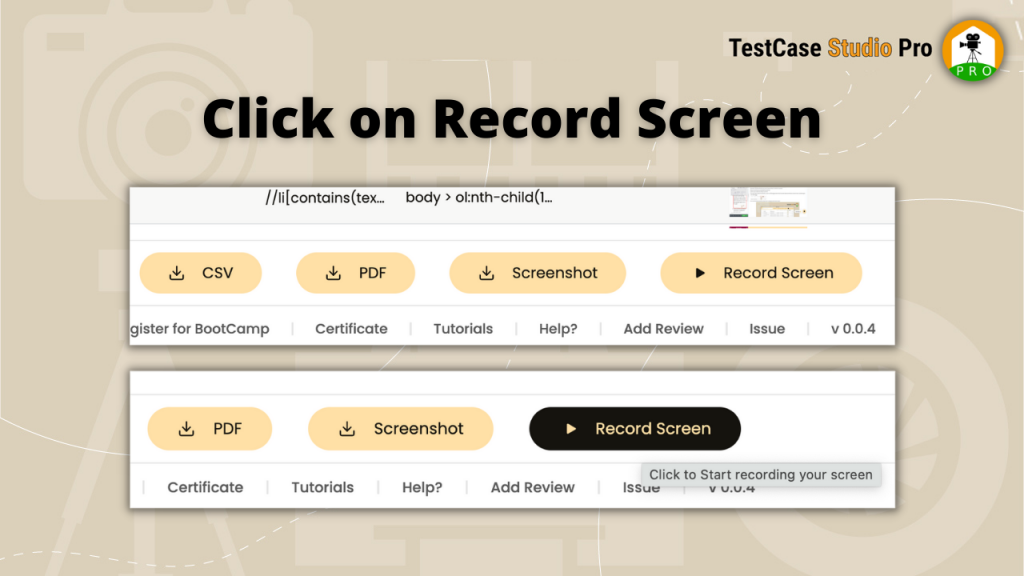
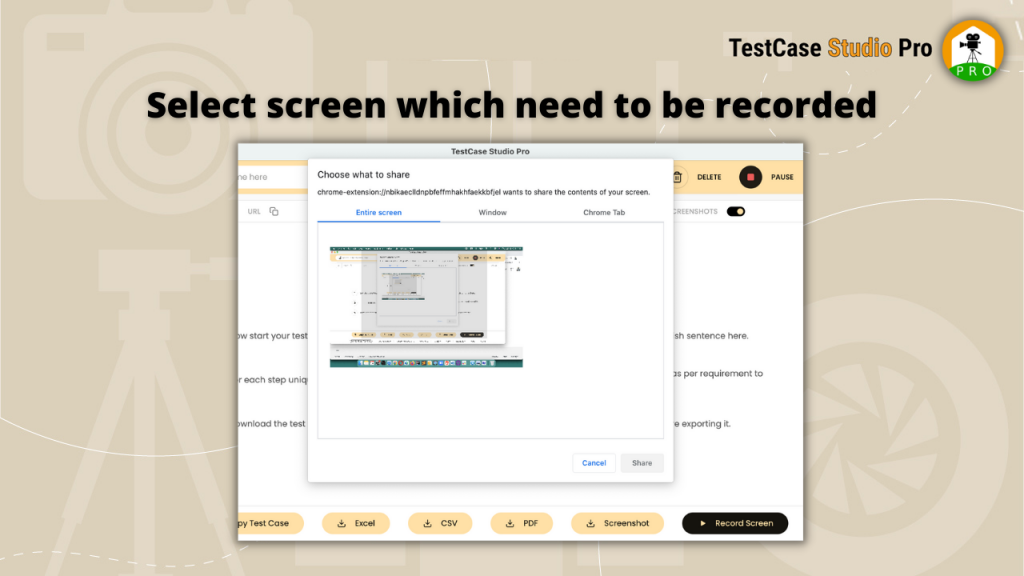
- It will open a window where you can select the screen which you want to record. To record whole screen, select entire screen.
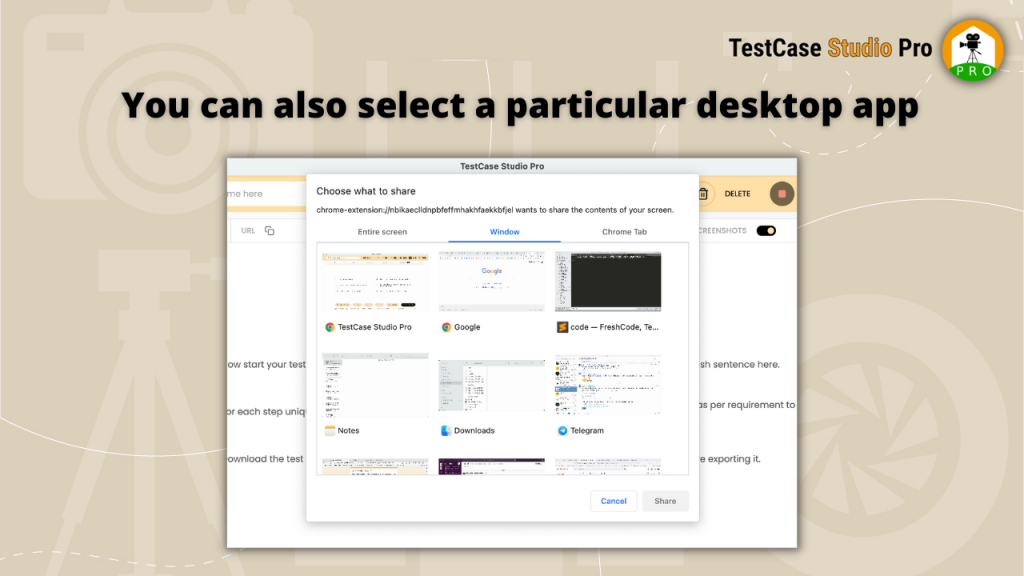
Or to record only a specific window or desktop app screen, go to window tab and select the window which need to be recorded.
Or to record a specific Chrome Tab, go to Chrome Tab window and select the tab which need to be recorded.
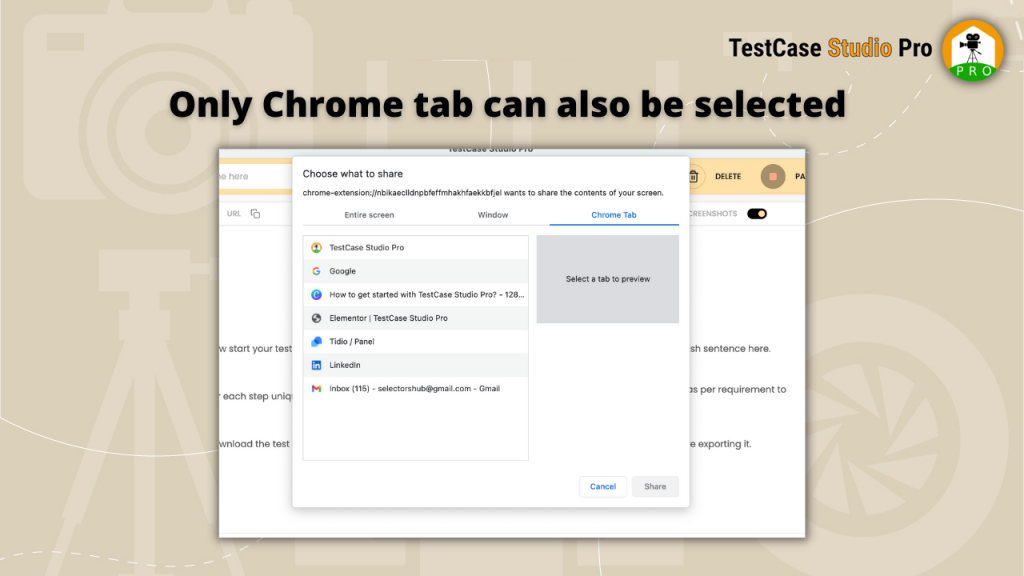
So for example here we want to record the Telegram App screen, so we selected Telegram app screen and click on Share button.
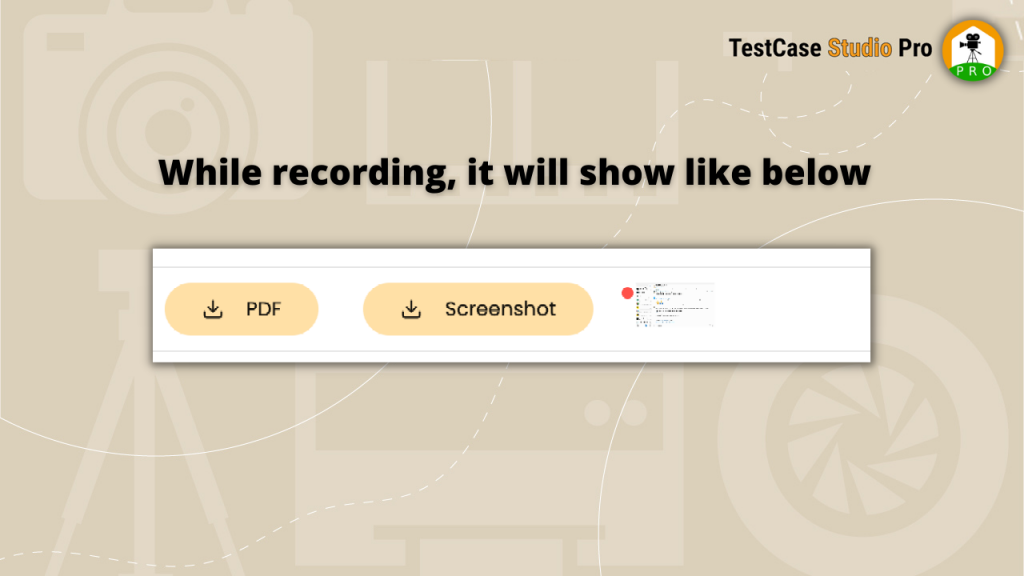
Now recording will start.
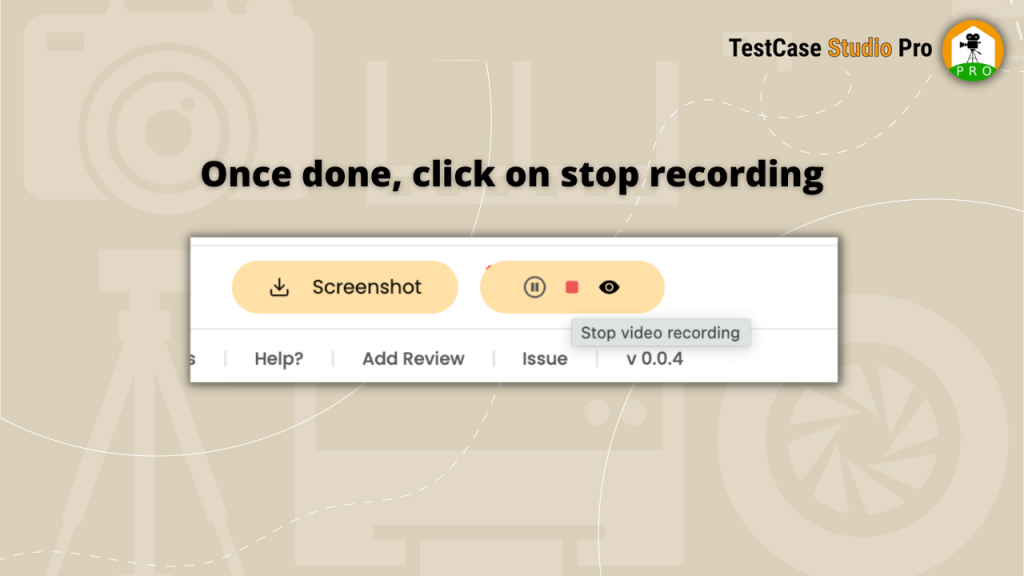
Once recording is done, click on stop video recording button on TestCase Studio Pro window.
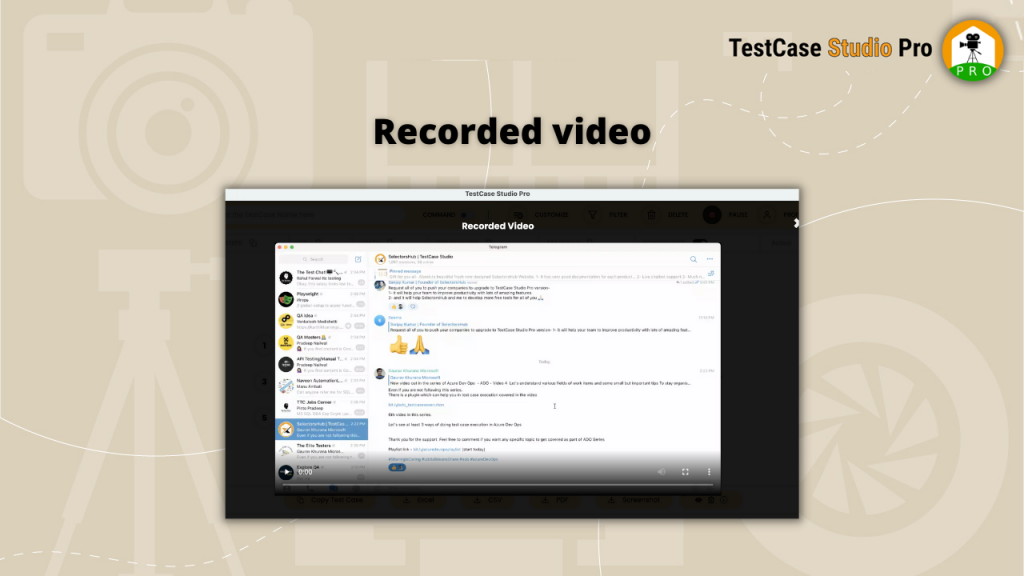
To view the recording, click on eye icon.
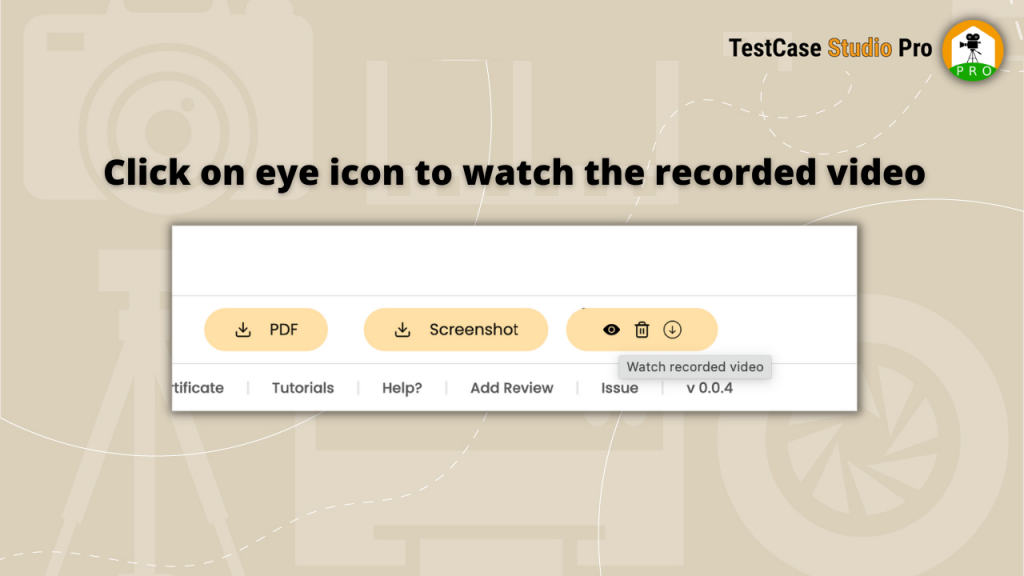
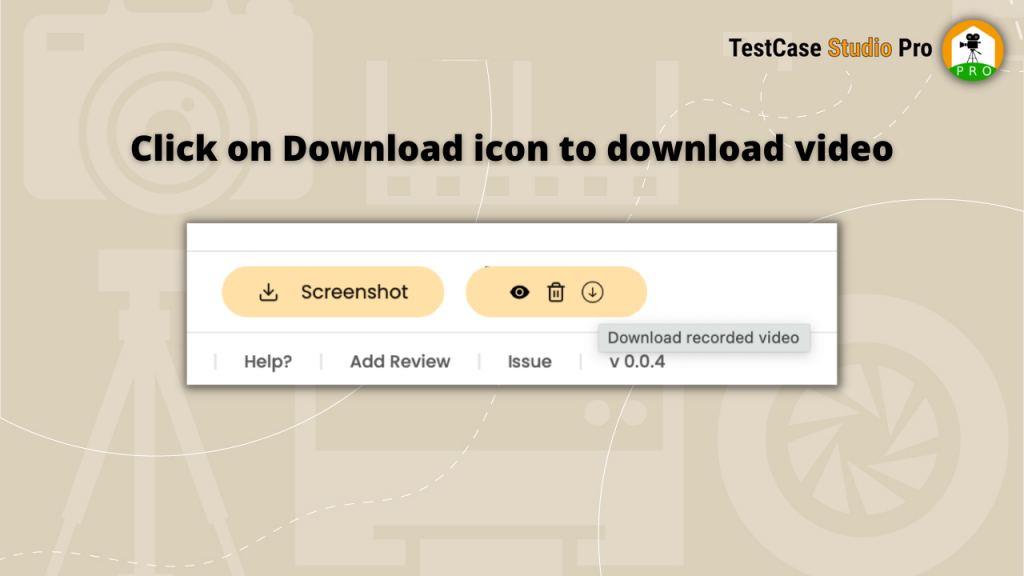
To download the recorded video, click on download icon.
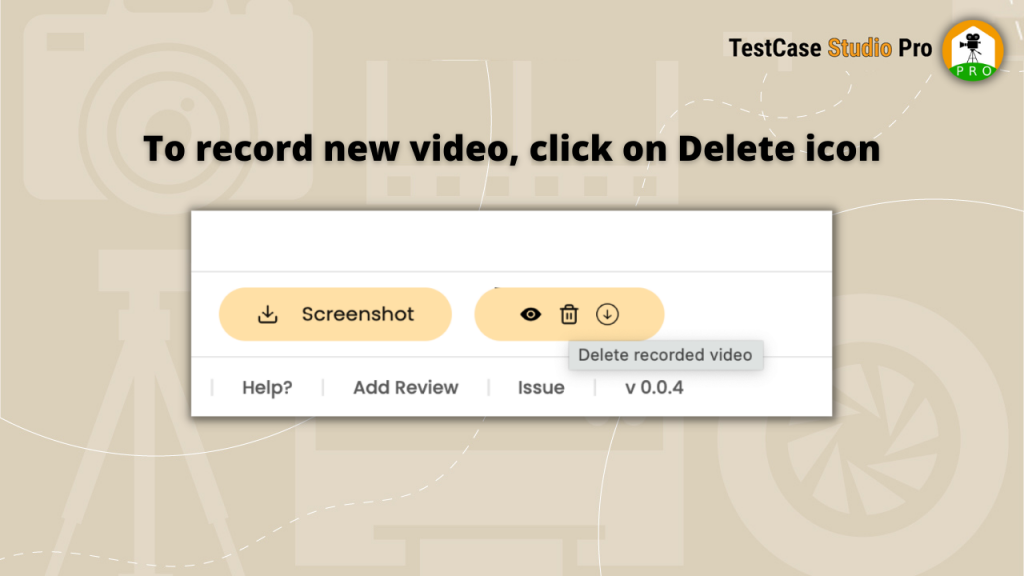
To record the new video, click on delete icon and again follow same steps to record.